
A step sequencer and a real piano roll, made for touch
Every song in SynthB starts in two places. The channel rack is where your instruments live and where you tap in drum patterns. The piano roll is where melodies, chords and bass lines get written.
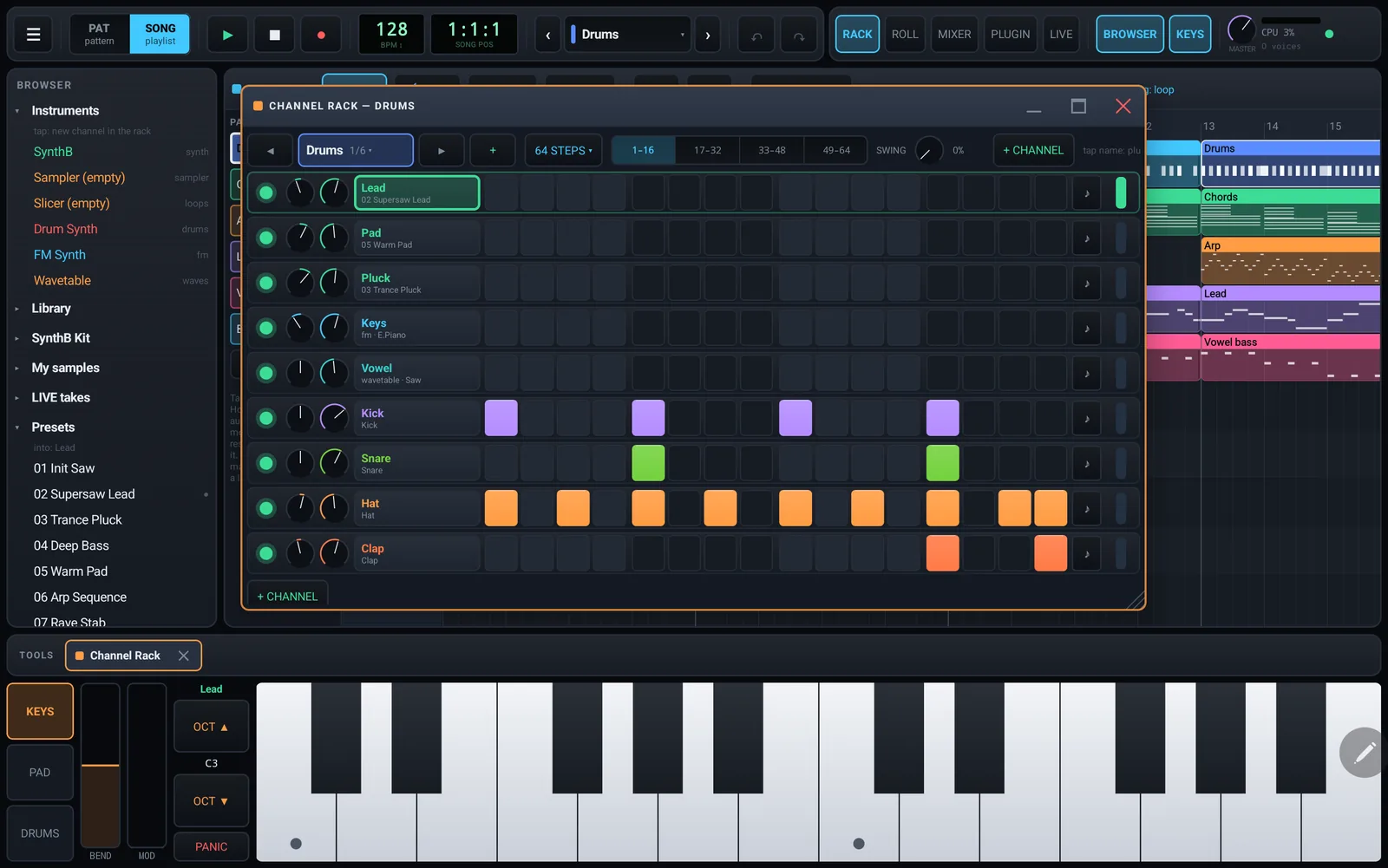
The channel rack
The rack holds up to 32 channels. Each one is an instrument: the SynthB synth, a sampler, a slicer, the drum synth, the FM synth or the wavetable synth. Each row has a mute light, pan, volume and a name button. Tap the name and that instrument's window opens. There are no menus to dig through.
For drums, tap the steps. A pattern can be as long as you need, and swing is one knob for the whole pattern. For anything melodic, the row shows a preview of its notes, and one gesture opens it in the piano roll.
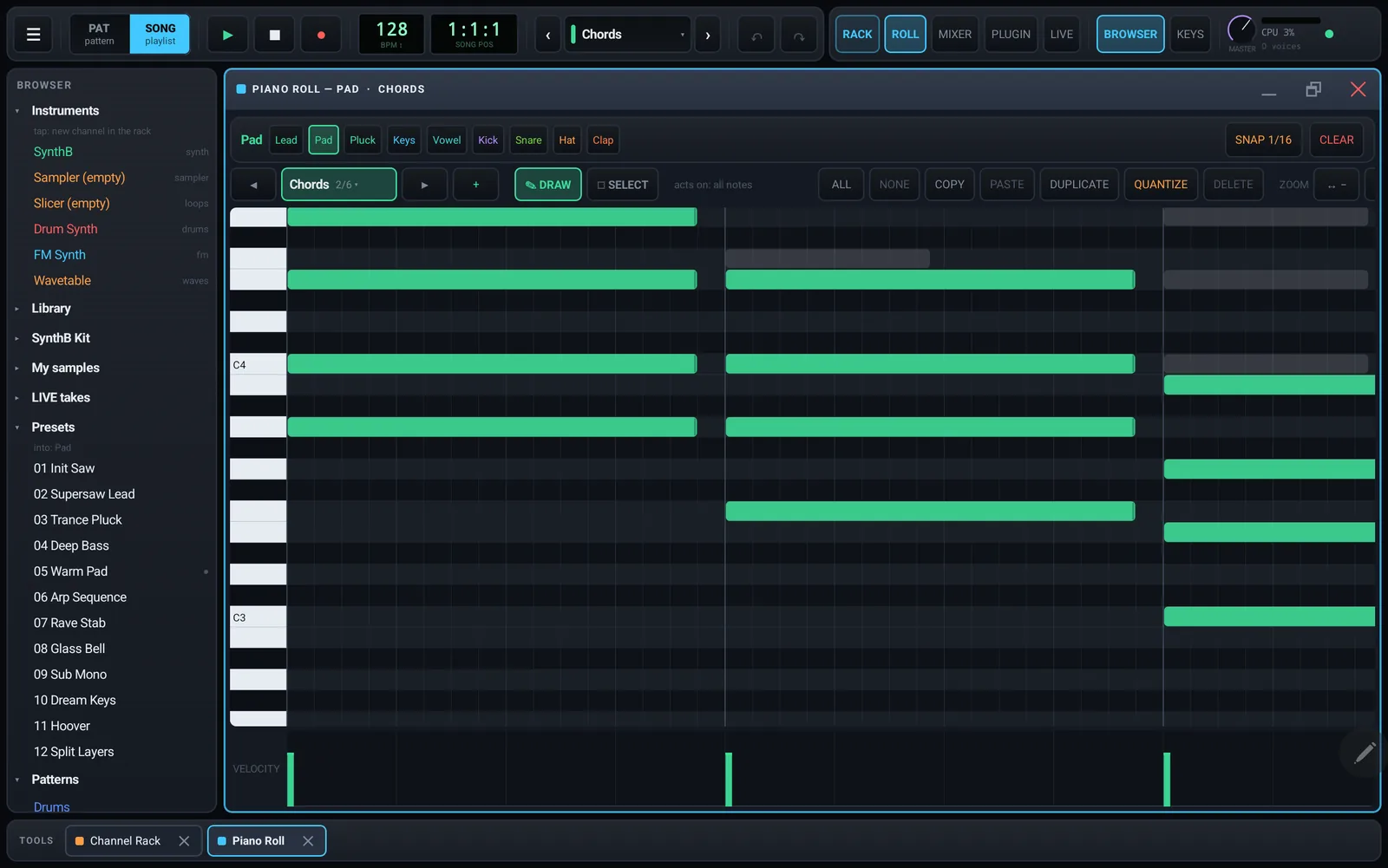
The piano roll
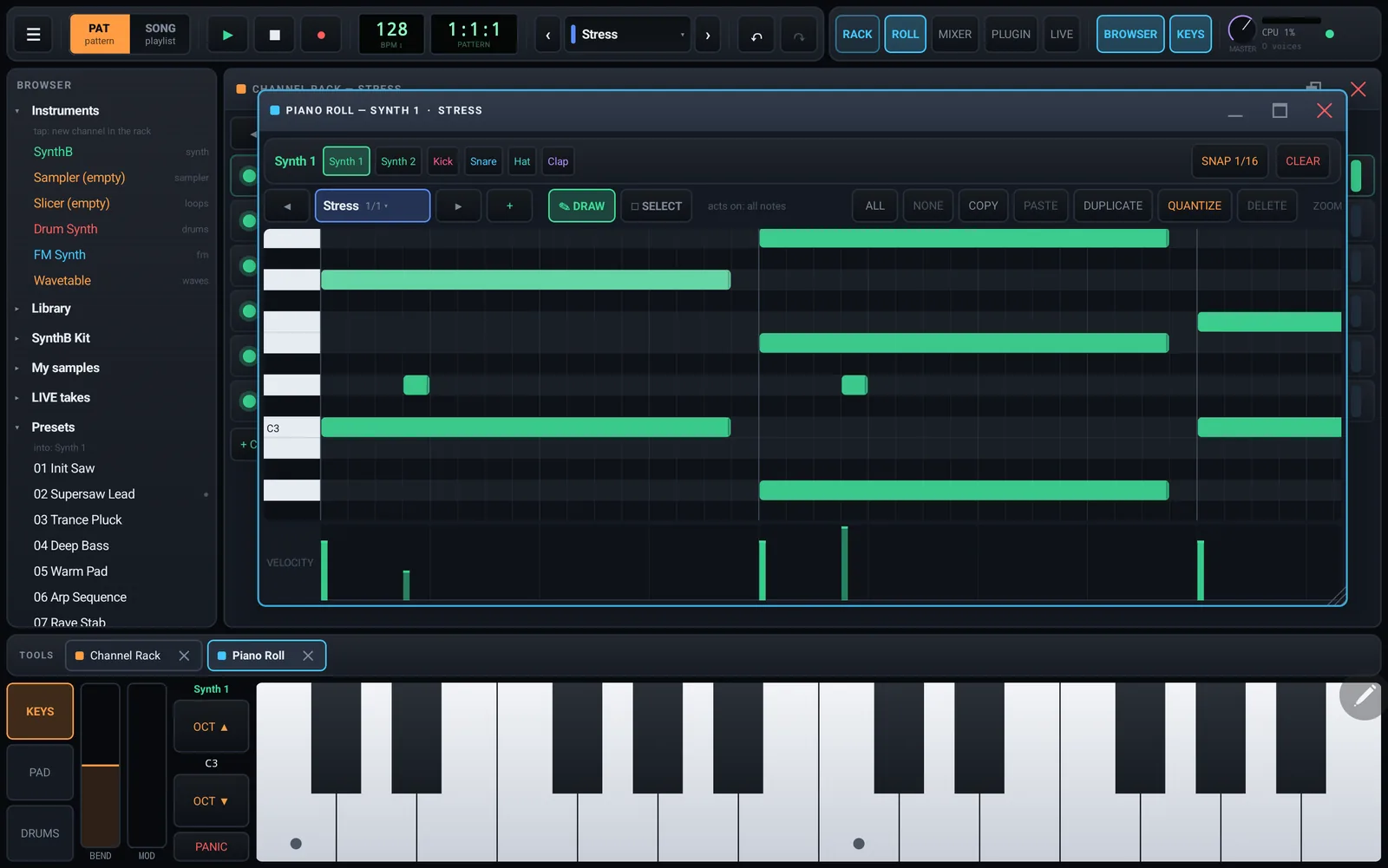
The piano roll works the way producers expect. Tap to draw a note, drag its end to make it longer, drag its body to move it, and change its velocity in the lane below. Pinch to zoom in on a fast hi-hat roll or out to see eight bars of chords. Notes snap to the grid, and the grid follows your zoom.
- 960 PPQ under the grid, so timing is as fine as on a desktop DAW.
- Velocity per note, drawn in its own lane.
- S Pen hover: the pen shows where a note will land before it touches the screen.
- Mouse: right-click deletes, the wheel scrolls and zooms, and hover highlights.
- Undo for a hundred steps, and the project autosaves while you work.
Patterns, then songs
What you build in the rack and the roll is a pattern. In PAT mode the transport loops the pattern you are editing. Switch to SONG and it plays the playlist, where patterns are laid out into a track. If you have used a pattern-based DAW on a desktop, you already know how this works. Our guide to that workflow on Android explains it from the start.
Write your first pattern tonight
The beat-making guide goes from an empty project to an exported WAV in eight steps.